Time with a boundary
Agree on a daily allowance for one app or a whole category of games.
A small promise, every day
Agree on a daily screen time routine together.
Then make room for all the little things beyond the screen.
Start with a conversation.
Build a routine together.
Agree on a daily allowance for one app or a whole category of games.
When the system records the limit, ask it to pause the selected apps.
Need a little longer today? A parent can choose to allow the rule for the day.
Choose a whole category, such as Games, so its apps share a daily allowance. Or set a separate limit for an individual app.
About category limits30 min / per day
Try a daily allowance
The 30-minute allowance is reached. Time for the category to rest.
Illustration with a fixed 10 + 20 minutes of use. This is not a live usage report.
Unlock when opening the app
Keep time limits, purchase choices and device settings together. Choose the protection requests that fit your family, then enable protection.
A six-digit parent PIN protects the management area, with optional Face ID or Touch ID.
Request restrictions on in-app purchases or require a password for App Store transactions.
Request protections for installation, removal, account changes and date and time settings.
Request limits on multiplayer gaming and adding friends in Game Center.
Actual protection depends on system permission, OS version and device support.
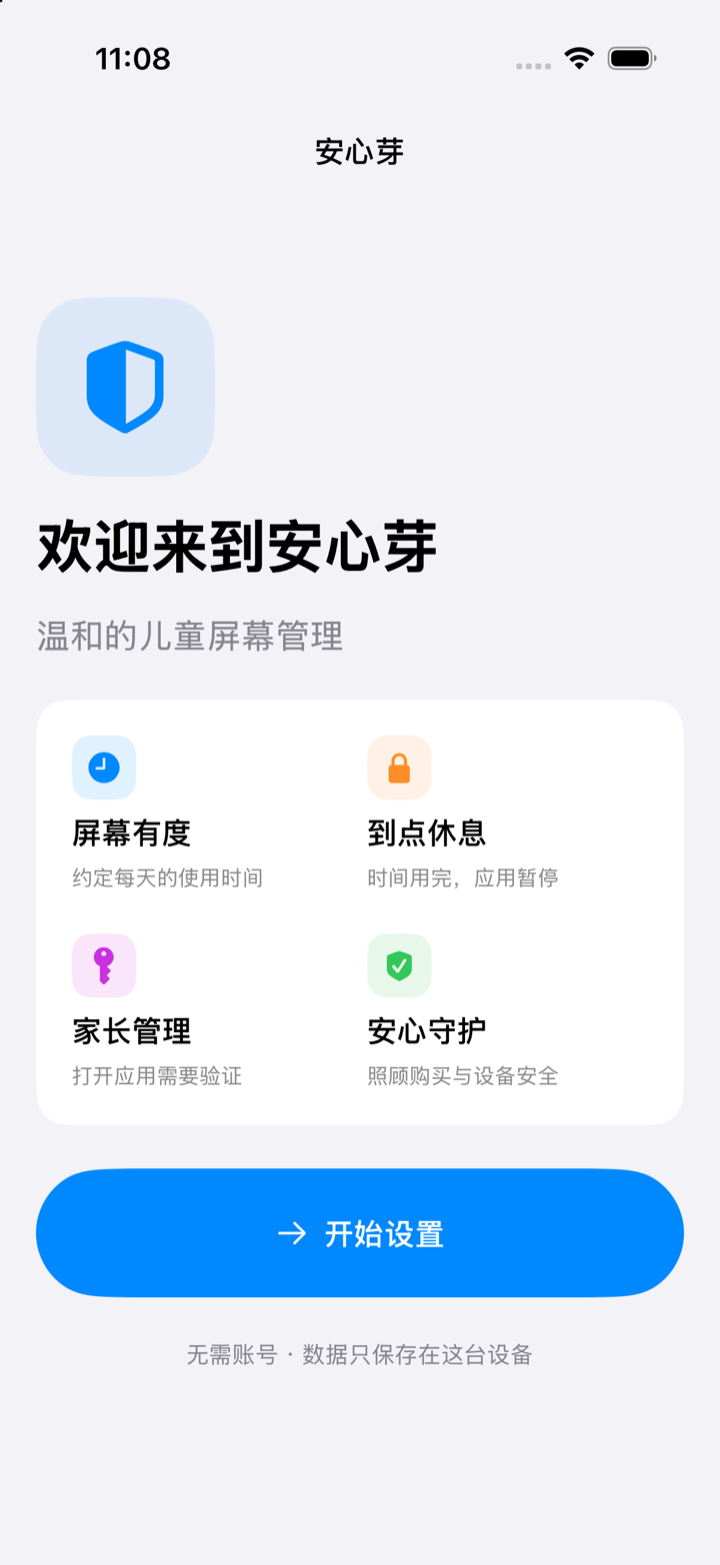
Set things up together on the device you want to manage.
Grant Screen Time permission in Apple’s system interface, then choose a six-digit parent PIN.
Add an app or a category. Start with 30 minutes per day, or choose an allowance that works for you.
Confirm your limits and protection choices. When more time is needed, a parent can handle the request in the app.
No account to create. No app usage details uploaded.
Rules stay on your device. PIN verification materials stay in the system Keychain.
This version is configured on the device being managed. It has no remote control, cloud accounts or device sync. Set up each iPhone or iPad separately.
Apple’s Screen Time frameworks handle events and shielding, and callbacks may be delayed. SafeSprout displays configured limits and lock states, not live usage or a second-by-second countdown.
There is no cloud recovery or universal PIN. The device owner can revoke Screen Time authorization in Settings to end management, but this does not recover the PIN. Reinstalling is not guaranteed to reset it.
Start today with a little time you agree on together.
App Store link coming soon
The download link will be added when available.
Requires iOS / iPadOS 17.6 or later
Setup and permission are required on each device. System restrictions can be revoked; bypass prevention is not guaranteed.